Works with the HTML you already send

The collaborative canvas
for HTML email.

Every HTML email in a flow, side by side. A simpler workspace for your team to comment, prototype, and ship faster.

Free plan, forever. No card, no sales call.

How it works

Built for the part nobody else covers.

Not another page builder, and not another code editor. The place your team reviews the real HTML and signs off on the campaign.

01

See the whole flow

Every email side by side, live. The drifting header is obvious when they sit together.

02

Code and preview in step

Click anything in the email and the editor jumps straight to it.

03

Nothing to migrate

Ghost tables, conditional comments and merge tags survive the round trip. Paste from your platform, work, paste back.

04

Comments land on the pixel

Pinned where they mean them, not described in a Slack thread.

05

Feedback becomes work

Hand a thread to someone, close it when it's done, see who closed it.

06

It knows email

Finds what Outlook and Gmail will break — and fixes most of it for you.

07

Everyone in the room

Live cursors, live edits, live comments. No one duplicates anyone.

Who it's for

Sharp about the job it does.

A good fit if you

  • Write email in HTML and review it with people who don't
  • Run flows that need to feel like one thing
  • Work with a client or a team somewhere else

Probably not if you

  • Need renders across dozens of real email clients
  • Want a template library to start from
  • Never leave your sending platform's editor

Pricing

Start free. Pay when it earns its keep.

One project free, forever. Everyone you share an email with can view and comment on every plan, at no cost — clients and stakeholders never need a seat to see the work.

Free

For trying it out, and for one email flow at a time.

$0/month

Free forever. No card.

Start free
  • 1 editor
  • Unlimited viewers and commenters
  • 1 project
  • The whole editor, live preview and inbox checks
  • Comments, mentions and version history
  • No AI assistant
Most popular

Freelancer

For one person shipping email for a handful of clients.

$15/month

Billed monthly.

Start free, upgrade anytime
  • 1 editor
  • Unlimited viewers and commenters
  • 3 projects
  • AI assistant and Redesign tool — 100 requests a month
  • Everything in Free

The assistant rewrites a section you draw a box around, answers questions about an email, and drafts subject lines.

Business

For a team, with as many people editing as you need.

$50/month

Billed monthly.

Start free, upgrade anytime
  • Unlimited editors — not priced per seat
  • Unlimited viewers and commenters
  • Unlimited projects and workspaces
  • AI assistant and Redesign tool — 500 requests a month
  • Everything in Freelancer

One price for the whole team. Adding a colleague costs nothing.

On every plan: unlimited viewers and commenters. The people who need to see the work and say what they think are never the thing you pay for.

What counts as an editor?

Anyone who can change an email. People who only view and comment are free, however many of them there are.

What is a request?

One thing you ask the assistant: a section redesigned, a question answered, a set of subject lines drafted. Reading, commenting and editing by hand are never requests.

What happens if I downgrade?

Nothing is deleted. You keep everything you have made and can still open and export it — you just cannot add more than the plan allows until there is room.

Can I change plans later?

Any time, in both directions. Stay on Free as long as you like; there is no trial to run out.

Start to send

One place, from first draft to campaign.

Here is the whole loop, the way a real week goes. Five steps, no tab-switching, and nothing leaves that the team has not seen.

01

Start with code, however you get it.

  • Paste HTML from your favorite AI, or from your email platform.
  • Or start blank and let the assistant draft it with you.
  • Ask in plain words: “make the button bigger.”
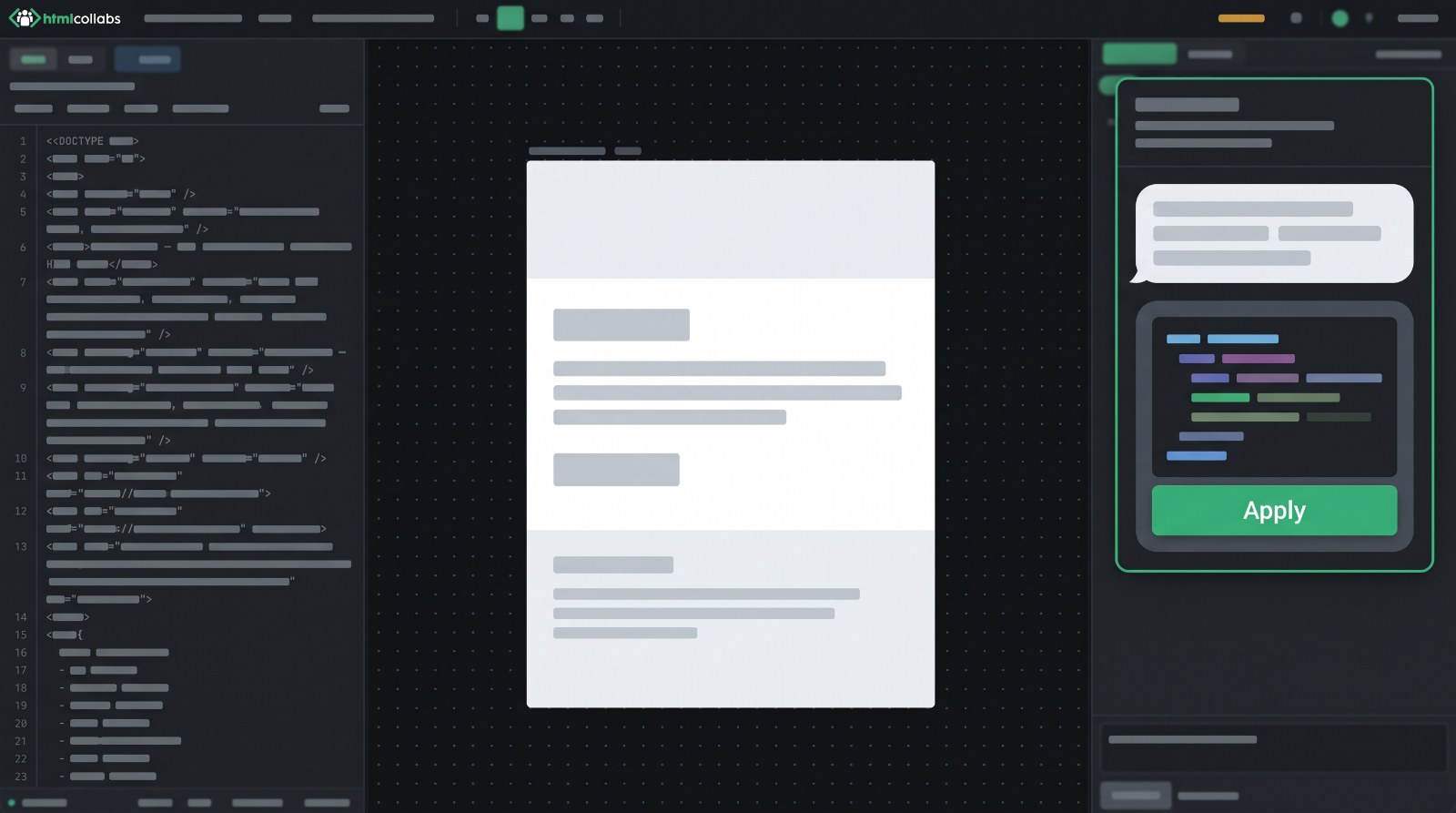
  • One click to apply. One to undo.
Your HTML stays your HTML. Nothing is re-generated behind your back.
The assistant panel next to an artboard, with a proposed change ready to apply
Assistant · draft, then apply
02

Review it together, on the pixel.

  • Invite the team.
  • Comments pin to the exact spot on the email.
  • Edits and redlines show up live for everyone.
  • Assign a thread. Close it when it’s done.
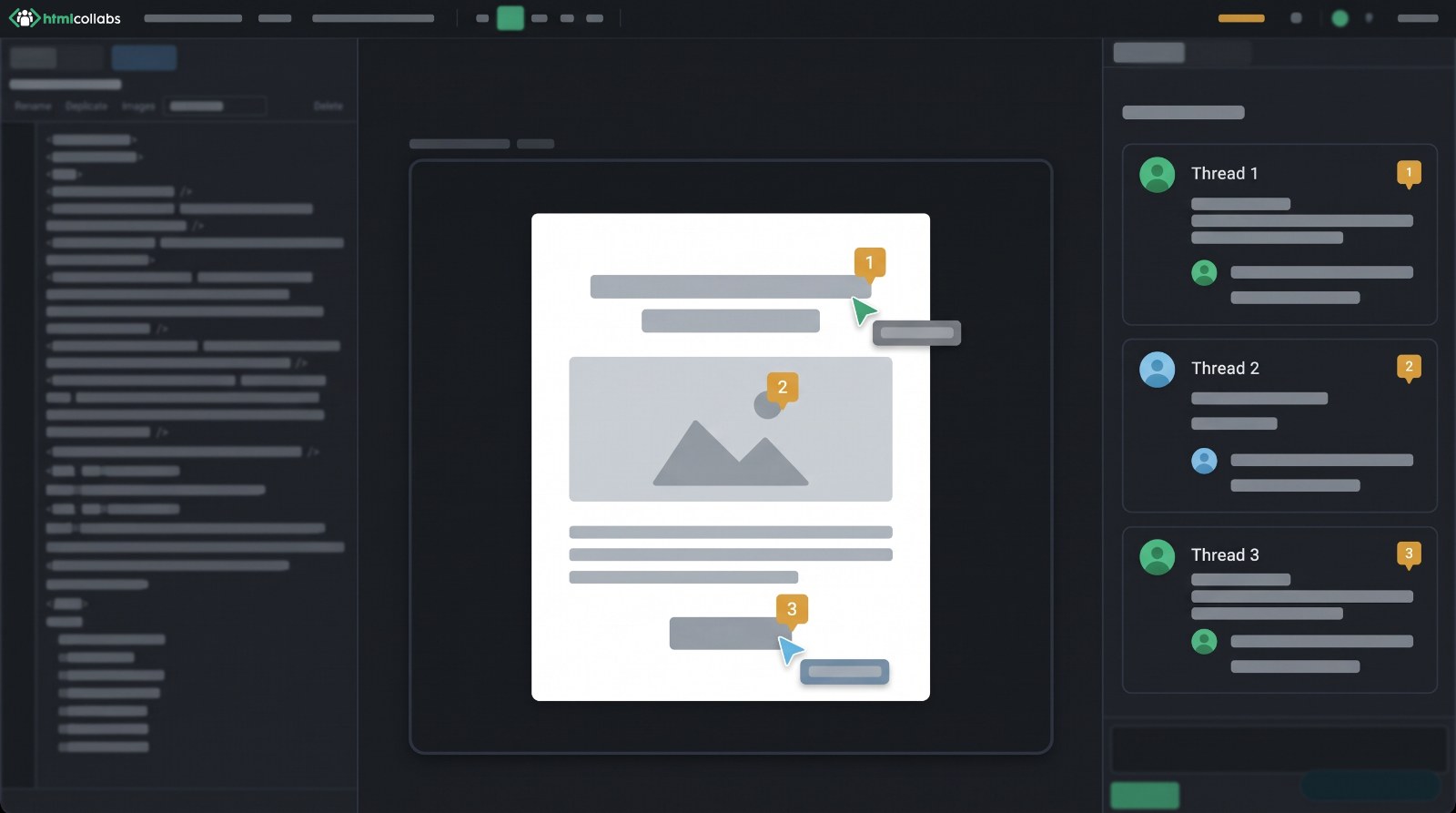
Live cursors, live edits, live comments. No version-4-FINAL.
An artboard with numbered comment pins and the comment threads beside it
Comments · pinned where they mean them
03

Edit without opening the code. Or open it.

  • Click any text and type.
  • Drop an image onto a picture to swap it.
  • Draw a box around a section, mark it up, say what should change.
  • The assistant redesigns just that section. You preview it before it’s applied.
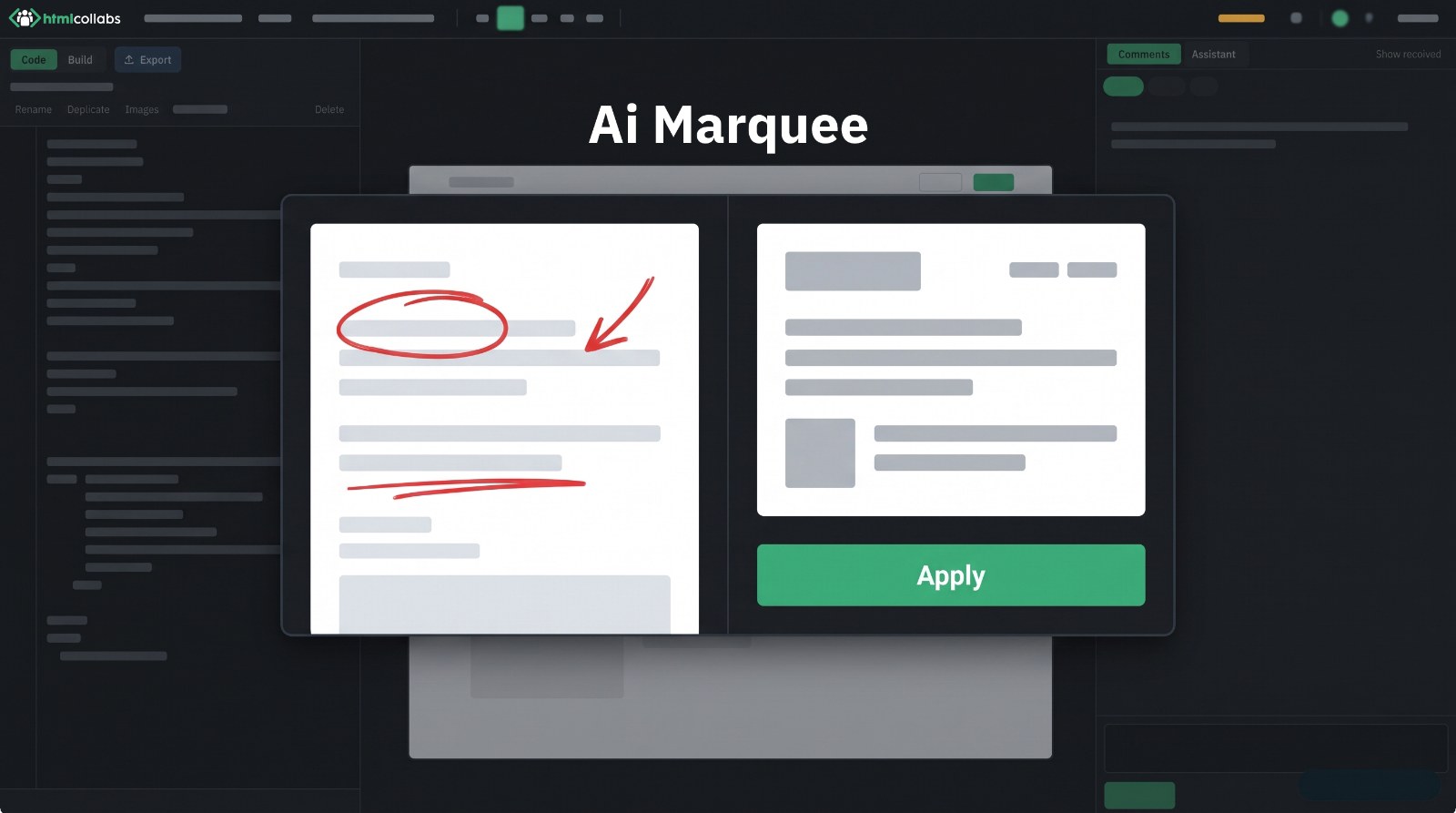
The marquee sends the section, a screenshot with your marks, and your note.
The redesign dialog: a marked-up screenshot of one section, a prompt, and the redesigned section previewed
Marquee · redesign one section
04

Check it before Outlook does.

  • One click finds what breaks in real inboxes.
  • Fixed widths, stretched images, missing alt text, relative links, open Klaviyo tags.
  • Flags anything that has drifted from the rest of the project.
  • Most of it fixes itself. The rest goes to the assistant.
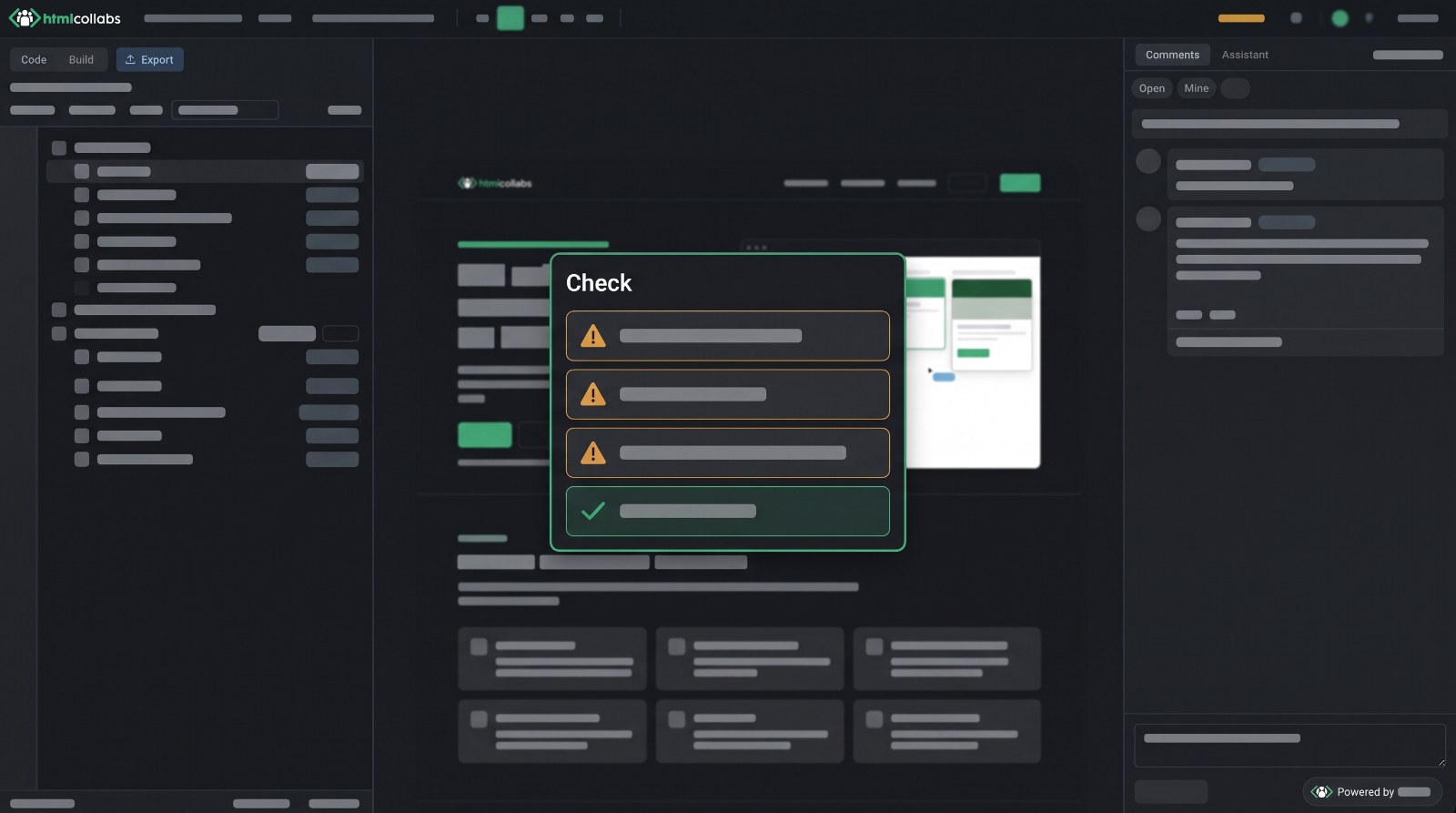
Green tick means clean. Amber means look.
The Check dialog listing issues found in the email, with fix buttons
Check · ready to ship
05

Ship it in one click.

  • Connect Klaviyo once.
  • Send to Klaviyo uploads your images and saves the email as a template.
  • Or export a PDF or image for sign-off.
  • What leaves is exactly what everyone approved.
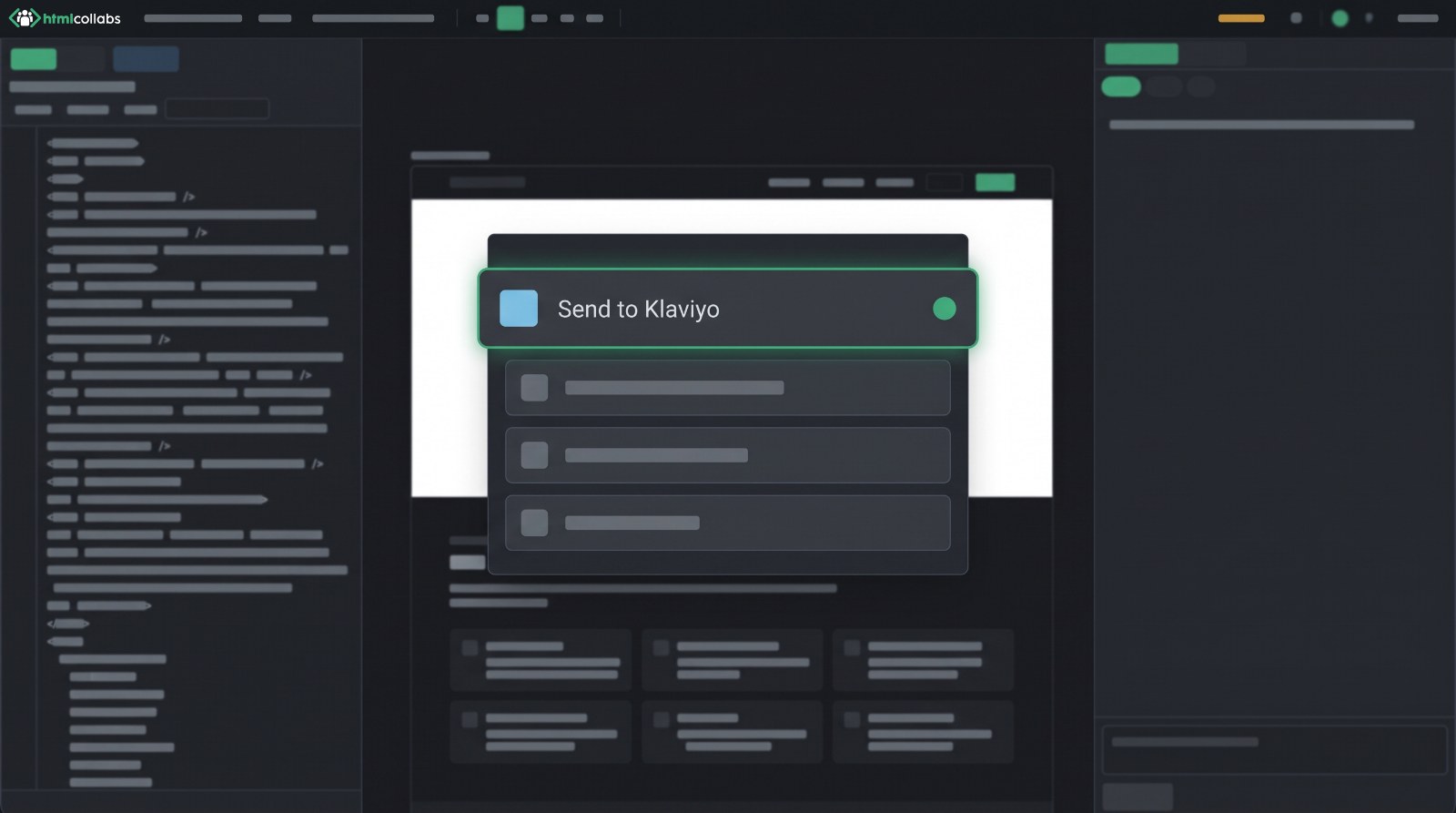
One Klaviyo account per project, so brands never mix.
The Export dialog offering Send to Klaviyo, plus PDF and image downloads
Export · Klaviyo, PDF or image

Put a real flow on the canvas.

Takes about two minutes. Paste your HTML, invite your team, see whether it clicks.